



WordPress 7.1 is finally here 🥳, and we have been closely following its development.
The new version launched on August 19, 2026, timed with WordCamp US. Its focus is on how you collaborate, style, and manage media on your WordPress website, and it fixes a long list of everyday annoyances along the way.
Whether you run a small blog or a large multi-author site, WordPress 7.1 has changes that will affect how you work every day.
ℹ️ Important: As always, please don’t forget to create a complete WordPress backup before updating to the new release. If you are not using managed WordPress hosting, then you will need to run the update yourself.
Here is everything that’s new in WordPress 7.1:
- Collaborate Better With the Upgraded Notes
- Share a Link to Any Revision
- Responsive Styling Without Writing CSS
- Style Hover and Focus States for Buttons
- New Tabs Block
- New Playlist Block
- A New Image Editor in WordPress 7.1
- Smoother and Smarter Media Handling
- The Admin Toolbar Now Stays Visible When Editing
- A More Personal And Easily Navigable Admin
- Block Improvements in WordPress 7.1
- Changes to Look Out for Before the Update
- What Didn’t Make It Into WordPress 7.1?
- Under the Hood (Developer & Performance Updates)
- Final Thoughts on WordPress 7.1
Collaborate Better With the Upgraded Notes
The Notes feature arrived in WordPress 6.9 as a simple way to leave comments on blocks. WordPress 7.1 turns it into a proper feedback system.
The most useful addition is @mentions. You can type ‘@’ inside a note to bring up a searchable list of collaborators and tag someone directly.
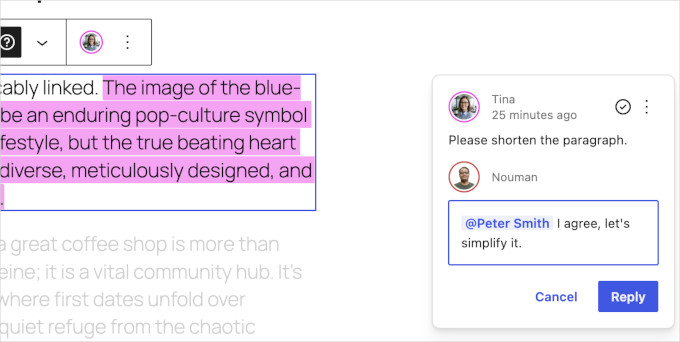
Even better, WordPress now sends an email notification to the person you tagged. This addition landed late in the release cycle, and it completes the feature.
Your teammate no longer needs to keep the editor open to know that feedback is waiting. The email brings them straight back to the right post.
You can also leave inline notes. Instead of attaching a comment to an entire block, simply select a specific sentence or phrase and leave a note on just that text.
The selection stays highlighted, so everyone can see exactly which words the note refers to. In our testing, this removed a lot of guesswork from editorial feedback.
Other Notes improvements include:
- Multiple threads: You can start more than one conversation on the same block.
- Text formatting: Notes now support bold, italic, code, links, and emoji.
- Show more / show less: Long notes collapse by default to keep the sidebar tidy.
- Private by design: WordPress stores notes as a special comment type, and 7.1 now excludes them from your public comment feeds.
These changes make Notes genuinely useful for teams, agencies, and multi-author blogs. It is a solid step toward a better editorial workflow inside WordPress itself.
Share a Link to Any Revision
Visual revisions, which were introduced in WordPress 7.0 have been improved as well. They now include a new feature to share links to individual revisions.
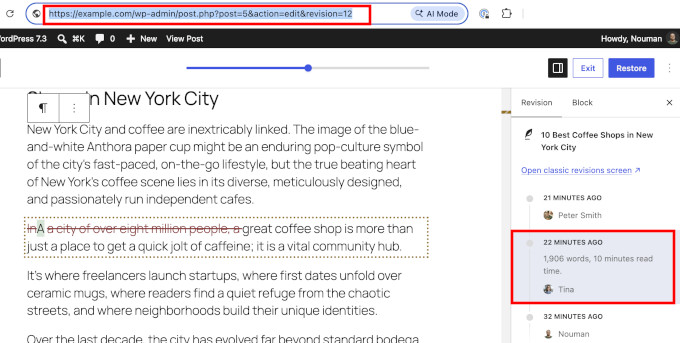
For example, let’s say that you want to show a team member which changes were made to an article. You can now open the revisions screen, pick the exact version, and copy the link from your browser toolbar.
You can then share that link and when opened, the link will take users to the exact revision with changes highlighted.
Visual revisions also get a new picker layout in this release. It makes browsing your edit history easier, with color-coded changes carried over from WordPress 7.0.
Responsive Styling Without Writing CSS
This is the feature we are most excited about. Responsive styling has been one of the longest-standing requests in the block editor, and WordPress 7.1 finally delivers a first version.
You can now define how a block looks at different screen sizes directly in the editor. For example, you can set a smaller font size for headings on mobile without writing a single line of CSS.
Here is how it works: Click the device preview icon in the editor’s top toolbar and turn on the new ‘Responsive styles’ option.
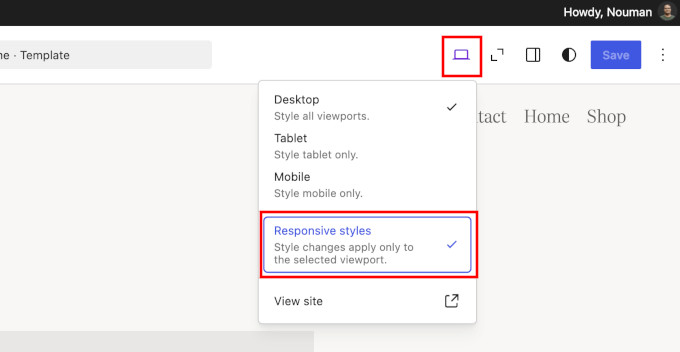
Now, switch the preview to Tablet or Mobile. From this point, any style change you make applies only to that screen size.
During testing, we selected a smaller font size for a button in the Tablet view, and the desktop design stayed untouched. WordPress also shows a small badge in the block settings panel, so you always know which viewport you are styling.
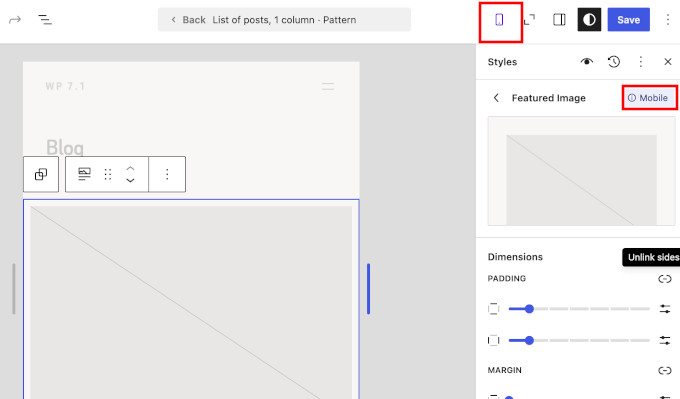
It works on two levels. You can set responsive styles in Global Styles, which apply to every instance of a block across your site, or you can style an individual block on a specific page.
The editor canvas is also more flexible. Instead of being limited to the Desktop, Tablet, and Mobile presets, you can drag the canvas to any width and watch your blocks respond in real time.
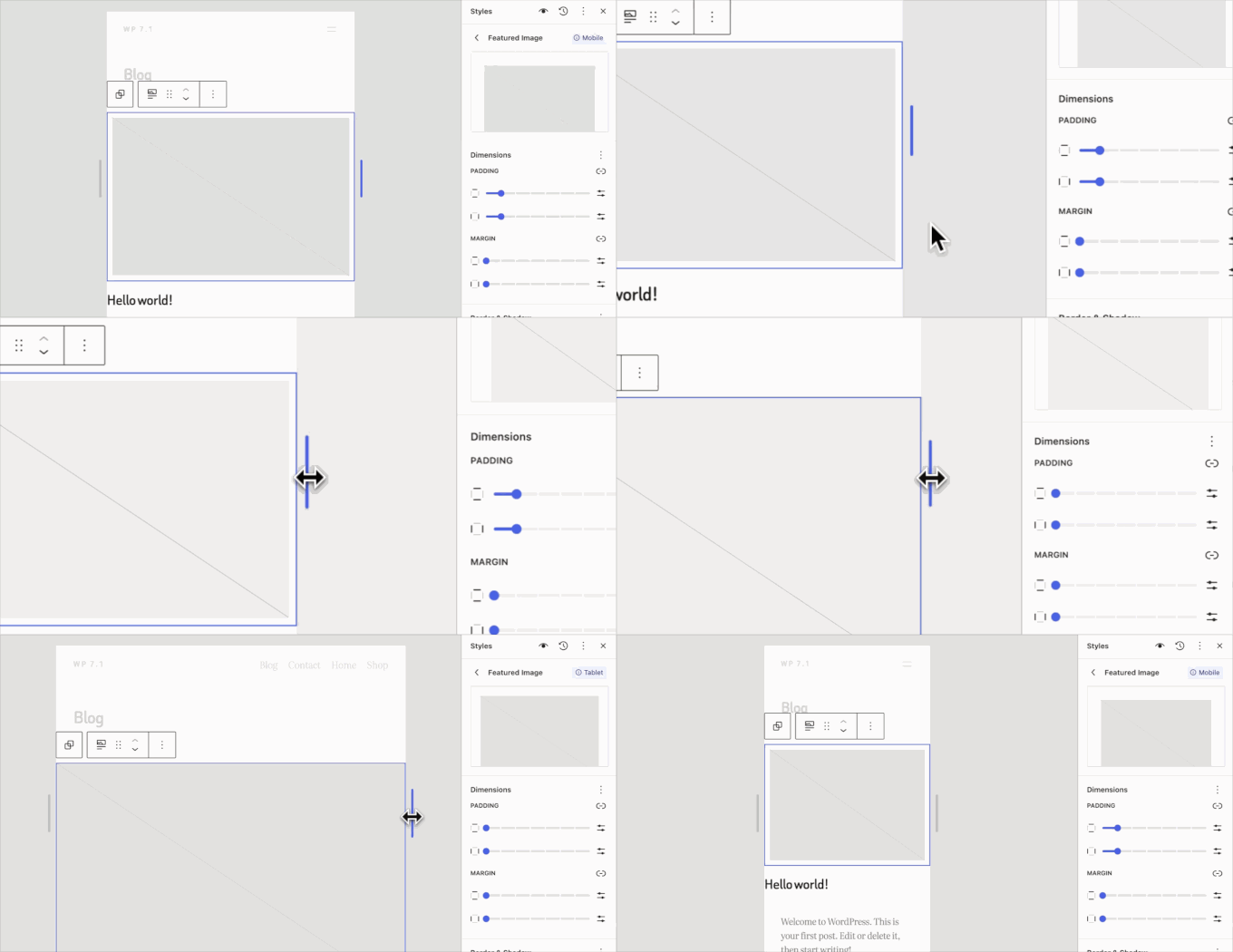
Theme developers can even define their own breakpoints in theme.json. That way, the preview widths match the theme you are actually using.
Style Hover and Focus States for Buttons
Alongside responsive styling, WordPress 7.1 introduces interactive state styling.
A new ‘State’ dropdown lets you visually style how blocks respond to interaction. For example, you can set a different background color for a button’s hover, focus, or active state and preview the change live in the editor.
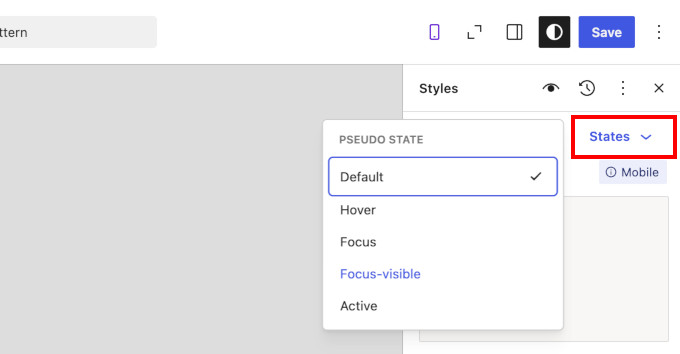
Previously, changing a button’s hover color required adding a custom CSS snippet. Now, it can be easily done inside the editor itself.
There is also a thoughtful refinement when you apply local style changes globally. WordPress now shows a quick review step, so you can choose exactly which modified styles to apply across your site and keep the rest as local overrides.
New Tabs Block
WordPress 7.1 adds a Tabs block that many users have been asking for.
Tabs let you organize content into clickable panels instead of showing everything at once. They are great for product specifications, FAQs, or comparing options without making a page feel long.
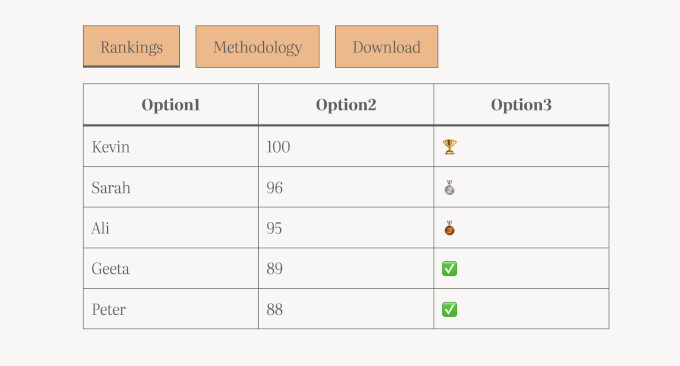
The final release has also added toolbar buttons for reordering tabs, which was a rough edge we noticed during the beta. Previously, you had to add tabbed content using a plugin, so it’s great to see this functionality now available as a core WordPress block.
We also like that accessibility was not an afterthought here. The block follows the W3C ARIA Authoring Practices Guide, which means it works properly with keyboards and screen readers out of the box.
New Playlist Block
The second new block in WordPress 7.1 is the Playlist block. It lets you add a collection of audio files to any post or page, complete with track metadata, artwork, and a waveform visualization.
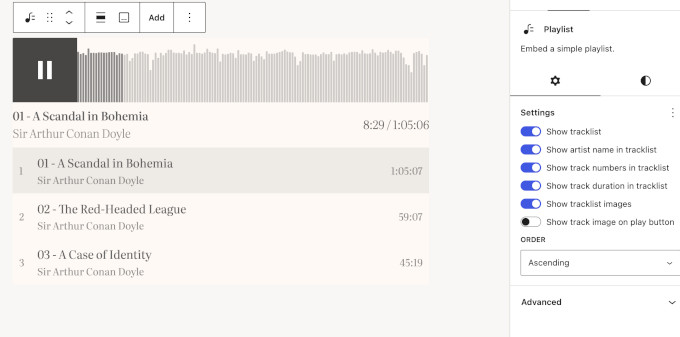
This is a nice upgrade for musicians, churches, educators, and anyone who publishes audio. If you run a podcast with WordPress, you can now list recent episodes in a clean player without a separate plugin.
A New Image Editor in WordPress 7.1
WordPress 7.1 replaces the old inline cropping tool with a dedicated Media Editor modal.
The entry point stays familiar. You still click the Crop button on an Image block, but now a full editing modal opens with freeform cropping, aspect-ratio presets, flip and rotate controls, and metadata editing in one place.
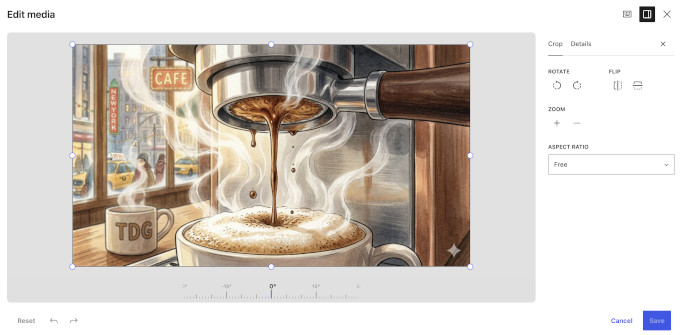
In our testing, the magnified crop view was the standout. It makes fine adjustments much easier, and the crop handles snap cleanly to pixels.
The new editor also works with the Cover block, so you can crop a background image right where you use it.
This will not replace a full photo editor. However, for the basic image editing most site owners need, being able to make them directly in the editor is a big usability win.
Smoother and Smarter Media Handling
WordPress 7.1 continues the client-side media processing work that started in WordPress 7.0. In simple terms, your web browser does the heavy lifting of processing images before they reach your server.
This release expands format support in a meaningful way. WordPress can now handle HEIC photos, which is the default format on iPhones, along with UltraHDR, AVIF, and WebP.
Until now, iPhone users often needed a HEIC to JPG conversion plugin just to upload their photos. With 7.1, that friction mostly disappears.
Uploads are also more resilient. If your internet connection drops mid-upload, then the upload queue pauses and automatically resumes when you are back online.
There are also several tiny improvements that make everyday WordPress tasks a little easier:
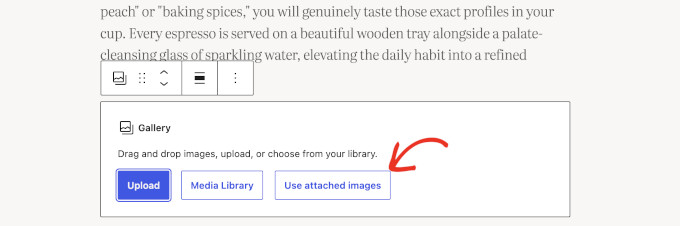
- Smarter galleries: A new dynamic Gallery mode can automatically pull in and sort media already attached to the current post.
- Attached images in the inserter: After you upload images to a post, they appear in a new ‘Attached images’ section, so you do not have to dig through the whole Media Library.
- Infinite scrolling: The Media Library grid now loads more items automatically as you scroll. WordPress turns this on by default, and you can bring back the old page-by-page view from your user settings if you prefer it.
Together, these changes mean fewer upload errors and less load on your server. That is especially good news if you are on a budget WordPress hosting plan.
The Admin Toolbar Now Stays Visible When Editing
WordPress 7.1 makes the admin toolbar persistent. It now remains visible in the Site Editor and the Block Editor, instead of disappearing when you start editing.
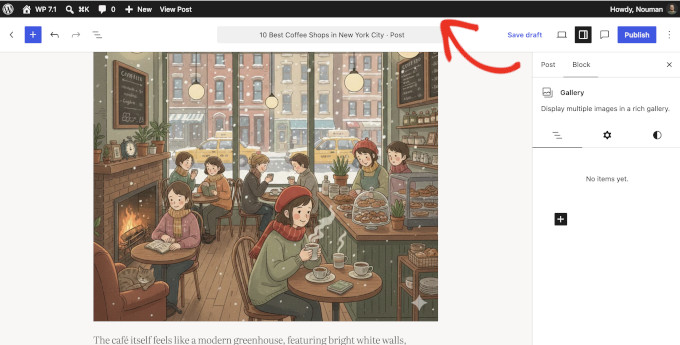
The toolbar itself has also gotten a design cleanup as part of this change:
- A clear back button (chevron) replaces the confusing W logo that used to double as a back button.
- Your site icon now appears in the toolbar, and your profile avatar is a circle instead of a square.
- Modern SVG icons replace the old Dashicons.
In our testing, this made moving between the editor and the rest of the admin feel much more predictable. Each icon now means one thing everywhere.
The ‘Howdy’ greeting survived another release. The core team discussed removing it during this cycle, but the change did not make it into 7.1.
If you prefer a clean writing canvas, then don’t worry. The toolbar stays hidden in Distraction Free mode.
A More Personal And Easily Navigable Admin
Beyond the toolbar, WordPress 7.1 includes a set of smaller admin improvements that add up.
Command palette improvements. The Command Palette (Ctrl+K on Windows, Command+K on Mac) now groups results into Recent, Matching, and Suggestions sections. WordPress saves your recently used commands to your preferences, so they persist across sessions.
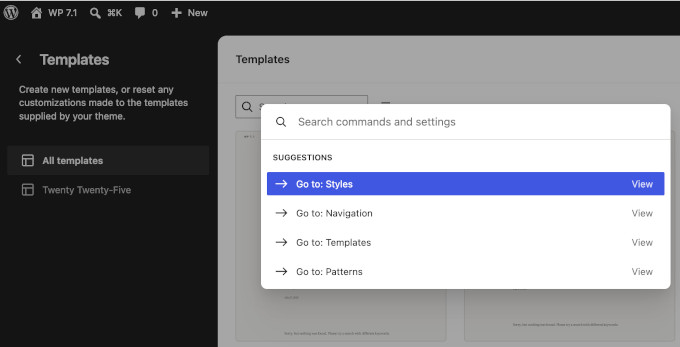
Your admin color scheme in the Site Editor. The Site Editor reflects your chosen admin color scheme instead of always using a fixed dark sidebar. It is a small thing, but it makes the whole admin feel consistent.
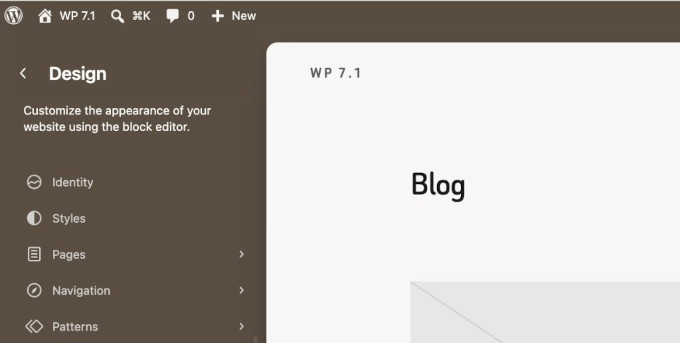
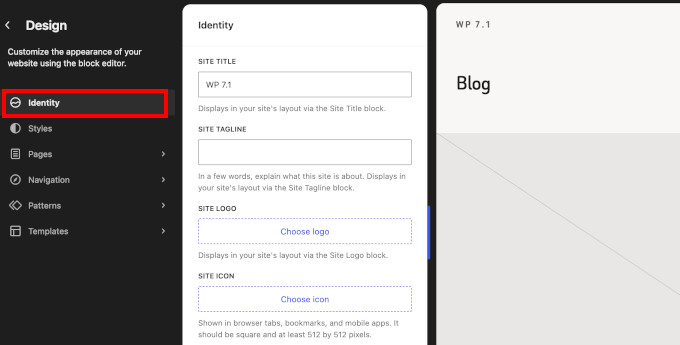
A dedicated Identity section. Site identity settings like your title, tagline, logo, and site icon now live in their own Design » Identity section in the Site Editor. You no longer need to hunt through Settings and templates to update these basics.
Excerpts in the Posts list. The Posts list view now shows a short excerpt for each entry, making it easier to tell similar posts apart.
Select many items at once. In the Site Editor’s list views, you can now click one item, hold Shift, and click another to select the whole range. If you manage hundreds of pages or media files, then this saves you time on bulk actions.
Change a comment’s parent. The Edit Comment screen adds an editable ‘In reply to’ control, so you can finally fix comments that ended up as replies in the wrong place.
Block Improvements in WordPress 7.1
Several existing blocks get meaningful upgrades in this release:
- Background gradients and images work together. You can now layer a gradient over a background image on the Group block and several other blocks. This is handy for keeping text readable over hero images.
- Text shadows in Global Styles. Themes and users can now configure text shadows through theme.json and Global Styles.
- Editable content inside the HTML block. The HTML block supports editable nested blocks. This is especially useful when working with AI-generated layouts, which often arrive as custom HTML.
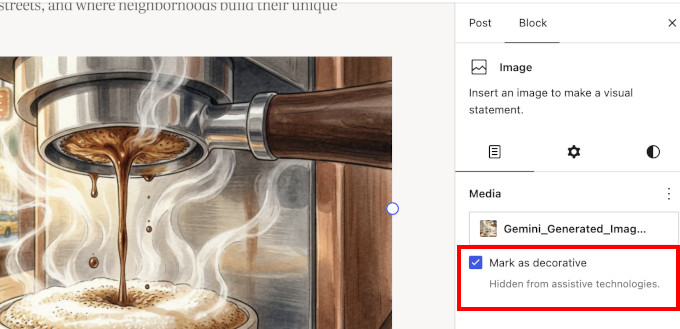
- Mark images as decorative. A new toggle on the Image block lets you mark purely decorative images so that screen readers skip them. Decorative images with meaningless alt text are one of the most common accessibility mistakes, and this makes the fix easy.
- Smarter shortcode handling. Pasting or converting an embed shortcode now creates a proper Embed block instead of leaving raw shortcode text behind.
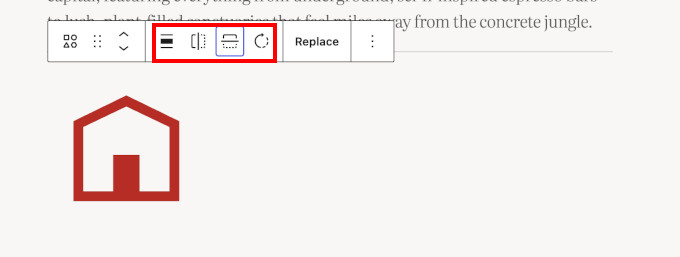
- Icon block upgrades. The Icon block now includes controls to flip or rotate icons, starts with a sample icon instead of an empty placeholder, and includes an icon picker organized by collections. Plugins and themes can now register their own icon sets, so expect branded icon libraries from your favorite plugins.
- Grid transforms. Columns and Gallery blocks can now transform into Grid layouts while preserving their content.
- Query Loop exclusion. The Query Loop block gets an option to exclude the current post, so your “related posts” section never recommends the post the visitor is already reading.
Changes to Look Out for Before the Update
Most sites can update to WordPress 7.1 without drama. However, if you run a large site with many plugins, then a few under-the-hood changes deserve your attention before you click update.
The editor is now always iframed. WordPress 7.1 completes a multi-year effort to place the editing canvas inside an iframe, and this now applies even when plugins register older-style meta boxes.
In simple terms, the editor content is loaded in a separate frame from the rest of the WordPress admin screen. This keeps admin styles and scripts from affecting the editing canvas as easily, which can make the editor more consistent and stable.
Most users won’t notice the iframe itself. Instead, you’ll mainly benefit from a more predictable editing experience.
There is a compatibility consideration, though. Older plugins that add custom scripts or styles to the editor may not work as expected with the iframe. Blocks also need to use Block API version 3 to render correctly inside the iframe.
WordPress 7.1 updates jQuery UI to version 1.14.2. jQuery UI is a JavaScript library that many older admin plugins use for things like date pickers and drag-and-drop screens. If a plugin on your site has not seen an update in years, then test it on staging first.
WordPress now enforces multisite upload limits everywhere. On WordPress multisite networks, space quotas now also apply when a plugin imports media from a URL (a process called sideloading). Previously, this route quietly bypassed the per-site storage limit, so network admins can expect quotas to hold from now on.
Our advise remains the same: always create a complete backup of your website before hitting update.
What Didn’t Make It Into WordPress 7.1?
A few features we covered during the beta cycle did not ship in the final release.
The core team cut the ‘On This Day’ widget. We previewed this dashboard widget in our beta coverage, and we liked it. The team decided it needs more work, so it may return in a future release.
Real-time collaboration is still in development. Google Docs-style co-editing received a lot of testing during the 7.1 cycle, but the team held it back to keep working on conflict handling and compatibility. You can try an early version in the Gutenberg plugin.
The Classic block stays in the inserter. The team originally planned to hide the Classic block from the block inserter in this release. After community feedback, they reverted the change, so nothing changes for sites that still rely on it.
The team also pulled Unicode email address support during beta testing. That work continues in a community plugin for broader compatibility and security testing before it lands in core.
We think this caution is the right call. A collaboration feature that loses someone’s work would be far worse than a delayed one.
Under the Hood (Developer & Performance Updates)
WordPress 7.1 also ships several technical improvements for developers and site performance:
- Faster editor startup: WordPress now preloads the REST API requests the editor needs on load, so the editor opens faster, especially on content-heavy sites. (#65636)
- Icons API goes public: New functions like
wp_register_icon_collection(),wp_register_icon(), andwp_get_icon()let plugins and themes register custom icon sets with server-side rendering and REST API endpoints. WordPress sanitizes SVGs against a strict allowlist. (Dev note) - Abilities API expansion: The machine-readable registry of WordPress capabilities, introduced in WordPress 6.9, gains filtering for
wp_get_abilities(), execution lifecycle hooks, a unified public exposure flag, and client-compatible JSON Schema output. These are the plumbing that AI agents and external tools use to work with your site safely. (Dev note) - Block Bindings for List Items: Block Bindings now extend to the List Item block, so more content can connect to dynamic data sources like custom fields. (Details)
- Speculative loading configuration: Hosts and developers can now configure speculative loading defaults (loading pages in the background before a visitor clicks) through environment variables and constants. (#65624)
- Accessible tooltips: Core introduces a shared mechanism for accessible tooltips, replacing pointer-only title attributes in several screens. It is part of a 46-ticket accessibility push in this release. (Dev note)
- Design system maturity: The
wordpress/themepackage introduces design tokens and a stable React ThemeProvider for consistent UI theming. (Dev note) - Author notification control: The
notify_post_authorfilter now has the final say on post author notifications, which makes custom editorial notification setups more predictable. (Dev note)
For the complete list of developer changes, see the official WordPress 7.1 Field Guide.
Final Thoughts on WordPress 7.1
We have been following WordPress 7.1 from development to the final release. It may not have a single blockbuster feature, but it fixes a long list of everyday annoyances, and that matters more for most website owners.
Our favorite additions are the upgraded Notes and responsive styling. Tagging a teammate on an exact sentence, and knowing they will get an email about it, makes WordPress modern collaboration tool.
And styling blocks for mobile without touching CSS removes one of the last big reasons beginners needed custom code.
If you haven’t updated yet, then we recommend backing up your WordPress site first. Once you are in, set aside a few minutes to explore Notes, the revisions sharing, and the responsive styling options. They are easy to miss but genuinely useful.
If you liked this article, then please subscribe to our YouTube Channel for WordPress video tutorials. You can also find us on Twitter and Facebook.
The post What’s New in WordPress 7.1? (Features & Screenshots) first appeared on WPBeginner.